How to organize social media assets across platforms
Learn how to organize social media assets effectively across platforms. Streamline your workflow and boost productivity with our expert guide.

You open your shared drive to find the final version of next week’s Instagram reel, but you can’t remember if it’s in the “Q3 Content” folder or the one labeled “Social Final FINAL v3.” Sound familiar? For social media managers juggling TikTok, Instagram, Facebook, YouTube, X, and LinkedIn simultaneously, disorganized assets aren’t just annoying — they create real costs. Missed post windows, duplicated creative work, and brand inconsistency all trace back to the same root cause: no clear system for managing your media. This guide walks you through exactly how to fix that, from auditing what you have today to building a scalable workflow that grows with your team.
Table of Contents
- Assess your current asset management workflow
- Choose the right tools and methods for asset organization
- Create a standardized workflow for asset management
- Troubleshooting, optimizing, and scaling asset organization
- What most guides miss: The reality of asset management for growing teams
- Streamline your asset management with Status 200 Uploads
- Frequently asked questions
Key Takeaways
| Point | Details |
|---|---|
| Assess your workflow | Identify current asset management gaps and pain points before making changes. |
| Select effective tools | Use cloud storage, automation, and calendar tools to improve efficiency. |
| Implement standard processes | Create clear workflows with naming conventions, scheduling, and approval steps. |
| Audit and adapt | Regularly review and optimize your system for scale and ongoing success. |
| Consider automation platforms | Platforms like Status 200 Uploads offer integrated solutions for multi-channel asset management. |
Assess your current asset management workflow
After recognizing the cost of disorganization, let’s map out where your asset workflow stands today.
Most social media teams underestimate how chaotic their existing setup actually is until they try to find something specific under pressure. Before you redesign anything, you need an honest look at your current state. Pull up your existing folders, shared drives, or Slack channels where assets live, and ask yourself a few hard questions.
Many SMBs use inconsistent systems for handling and distributing media to multiple social profiles, which means the problem isn’t unique to your team. But that also means a better system will immediately give you a competitive edge in execution speed and consistency.
Common pain points to look for in your current setup:
- Files named things like “image_FINAL_USE_THIS_one.png” scattered across multiple folders
- The same video saved in three different locations with different edits
- Team members who can’t access assets because permissions weren’t set correctly
- No clear owner for specific asset types, so files fall through the cracks
- Outdated content that’s still being accidentally reused
Once you’ve identified these pain points, create a simple baseline asset map. This doesn’t need to be fancy. A table captures where things currently live and how consistent your naming and access practices actually are.
| Asset type | Current storage location | Naming convention | Access level | Primary owner |
|---|---|---|---|---|
| Instagram graphics | Google Drive / Marketing | Mixed / unclear | Team-wide | No single owner |
| TikTok videos | Local hard drives | Date-based | Creator only | Video editor |
| YouTube thumbnails | Slack messages | No convention | Partial | Designer |
| Facebook ad images | Cloud folder | Inconsistent | Manager only | Ad manager |
| LinkedIn post images | Email attachments | No convention | Requester only | Multiple |
This exercise is often eye-opening. When you see all of your asset types laid out like this, gaps in your media management strategies become obvious. You’ll also want to take stock of which best media formats you’re actually using per platform, because this affects how you’ll categorize assets going forward.
Choose the right tools and methods for asset organization
Now that you see where you are, let’s explore which tools and systems will help you level up asset organization.
Not all storage solutions are created equal when it comes to social media assets. A freelance photographer and a five-person marketing team at a SaaS company have very different needs, but they both benefit from thinking through the same core options.
Cloud storage vs. local drives vs. platform-specific tools:
- Cloud storage (Google Drive, Dropbox, OneDrive) gives your team real-time access from anywhere, supports version history, and makes sharing with external partners easy. The downside is that without strong folder discipline, cloud drives become just as messy as a local drive.
- Local hard drives are fast for individual editors but create immediate collaboration problems. If your video editor stores source files locally and then goes on vacation, you’re stuck.
- Platform-specific asset managers offer native integrations with specific social channels but rarely work across all six major platforms simultaneously. This creates silos that actually add to your organizational burden.
Here’s a quick comparison to help you choose the right foundation:
| Tool type | Best for | Limitation | Cost range |
|---|---|---|---|
| Cloud storage | Team collaboration, remote access | Requires folder discipline | Free to $25/user/month |
| Local drives | Speed, large file handling | No collaboration or access control | Hardware only |
| Dedicated social tools | Platform-specific scheduling | Limited cross-platform support | $15 to $200/month |
| All-in-one platforms | Multi-platform, automated publishing | Learning curve | $20 to $150/month |
When building your folder hierarchy, the goal is predictability. Anyone on your team should be able to find any asset in under 30 seconds without asking someone else. A solid folder structure follows this pattern: Platform > Content Type > Campaign > Month. For example: Instagram > Reels > Summer Launch > June 2026.
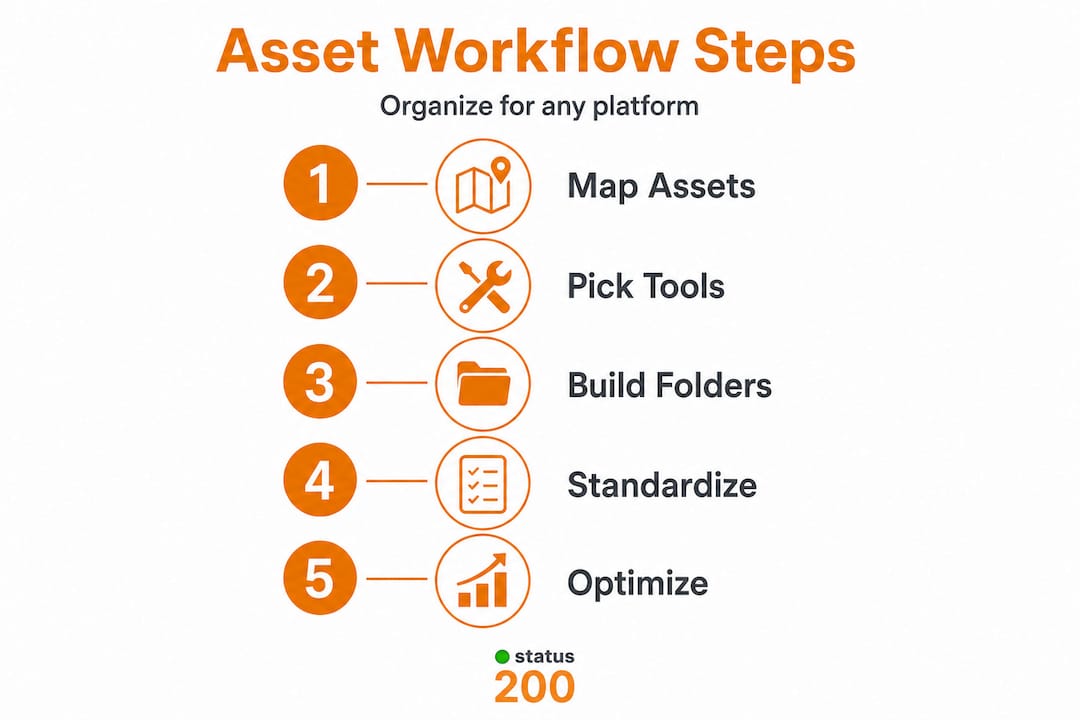
Social media tools for SMBs vary widely in how they handle asset storage, so test a few options against your actual workflow before committing. And if you’re not already using a social media calendar, this is the moment to start, because it anchors your asset organization to actual publishing dates.
Version control is another area teams overlook. When you update a graphic, don’t just overwrite the file. Use a simple naming convention like “Campaign_Name_v1,” “v2,” “v3_approved” so your team always knows which version is live and what was changed.
Pro Tip: Connect your cloud storage to an automation tool like Zapier or Make.com. You can build a workflow that automatically moves newly uploaded assets into the correct campaign folder based on file name tags, cutting manual sorting time significantly. Automated scheduling tools streamline asset distribution across platforms, which means less clicking and fewer human errors during publishing windows.
Create a standardized workflow for asset management
Selecting tools is half the battle; applying them with discipline truly improves asset management.
Having the right tools with no clear process is like buying a new filing cabinet and then stacking papers on top of it. The system only works if everyone follows the same steps every time. Here’s how to build that consistency into your team’s daily routine.
“Mapping out a standardized workflow ensures assets are easy to locate and deploy.” — Status 200 Uploads
Step-by-step workflow for managing social media assets:
-
Define your naming convention before anything else. Decide on a format and document it. A strong convention might look like: [Platform][ContentType][CampaignName][Date][Version]. For example: “IG_Reel_SummerLaunch_2026-06-15_v2.mp4.” Every person on the team uses this, no exceptions.
-
Set up a centralized upload point. All new assets go into a single “Inbox” folder first. Nothing goes directly into a campaign folder until it’s been reviewed. This creates a natural checkpoint and prevents half-finished files from getting published.
-
Categorize assets immediately upon upload. Don’t let the inbox fill up. Set a team rule: assets in the inbox get filed into the correct campaign folder within 24 hours of upload. Assign this responsibility to a specific person, not just “whoever gets to it.”
-
Schedule assets using your content calendar. Once an asset is approved and filed, link it directly to a calendar event or scheduled post. This connects your storage system to your publishing workflow, so nothing gets missed. Leveraging multi-account efficiency means you can schedule the same asset across TikTok, Instagram, and LinkedIn from one place, rather than uploading separately to each.
-
Build in a review and approval checkpoint. Before any asset goes live, a designated team member confirms it meets brand guidelines, is the correct format for the target platform, and has been approved. For larger teams, this can be a simple Slack message or a shared approval tracker.
-
Archive published assets with metadata. After a post goes live, move the asset to an “Published” archive folder and tag it with the date, platform, and performance notes. This makes future content audits fast and builds a reusable content library over time.
Understanding the different social platform types your content lives on also matters here. A vertical video saved for TikTok has different specs than a square image for Instagram, and your workflow should account for platform-specific versions of the same core asset.
Pro Tip: Build reusable templates for your most common content cycles, like weekly tips posts, product spotlights, or monthly recaps. Templates reduce creation time and enforce visual consistency without extra effort from your design team.
Troubleshooting, optimizing, and scaling asset organization
Once your workflow is live, proactive troubleshooting and optimization avoid future headaches.

Even a well-designed system develops problems over time. The goal isn’t a perfect setup on day one. It’s catching small cracks before they become full breakdowns.
Common bottlenecks and how to fix them:
- Slow uploads: Usually caused by large uncompressed files. Set a team rule that all assets must be compressed to platform-appropriate specs before uploading to the shared drive. This keeps storage lean and upload speeds fast.
- Duplicate files: Happen when team members don’t check if an asset already exists before uploading. A quick fix is adding a search step to your intake process. Before uploading anything, search the shared drive for similar file names first.
- Blocked access: Often occurs when assets are saved in a personal folder or a drive that isn’t shared with the right people. Fix this by setting up role-based access permissions from the start, so every team member automatically has access to the folders relevant to their role.
- Outdated content being reused: Schedule a quarterly asset audit to move stale or off-brand content into an archived folder or delete it entirely. Regular audits and adjustment keep asset systems efficient and safe from clutter.
Scaling your asset management as your team grows requires two things: automation and documentation. Automation handles the repetitive tasks, like moving files, sending approval reminders, or syncing your calendar with your publishing tool. For platform-specific automation needs, practical TikTok scheduling tips show how automated scheduling reduces the manual effort of managing content across fast-moving platforms.
Documentation handles the human side. Every process you’ve built needs to be written down in a team wiki or shared document. When a new team member joins or a freelancer comes on board for a campaign, they should be able to read your asset management guide and operate independently within a day.
Pro Tip: Document your workflow with screenshots, not just text. A visual showing exactly where to upload files, how to name them, and where to find the approval checklist eliminates the “I wasn’t sure where to put it” excuse entirely.
What most guides miss: The reality of asset management for growing teams
Here’s something most organizational guides won’t tell you: the system you build today will be inadequate within 12 months if your team or content volume grows. That’s not a failure of planning. It’s just the reality of how fast social media workflows evolve.
Most teams spend weeks designing the perfect folder structure, then watch it slowly unravel as content volume triples, new platforms get added, or team roles shift. The problem isn’t the system. It’s the expectation that the system should last forever without updates.
The more sustainable mindset is treating your asset management workflow the way you’d treat your content strategy: review it quarterly, update it when it stops serving your team, and don’t get precious about changing what isn’t working. A rigid folder tree built for a two-person team will create genuine bottlenecks once you’re managing six accounts across multiple time zones.
We’ve seen teams fall into the trap of adding more folders to solve a folder problem. When navigation becomes slow or confusing, the answer isn’t more hierarchy. It’s usually better tagging, smarter search, or integrating social media automation so the system organizes itself rather than relying entirely on human discipline.
The teams that handle scale best are the ones who check in on their asset system regularly, ask their team members where they’re hitting friction, and make small iterative improvements. Perfection isn’t the goal. Adaptability is.
Streamline your asset management with Status 200 Uploads
Managing assets across TikTok, Instagram, Facebook, YouTube, X, and LinkedIn shouldn’t mean bouncing between six different tabs, three cloud drives, and a shared spreadsheet. The strategies in this article work best when they’re backed by a platform designed for exactly this kind of multi-channel workflow.
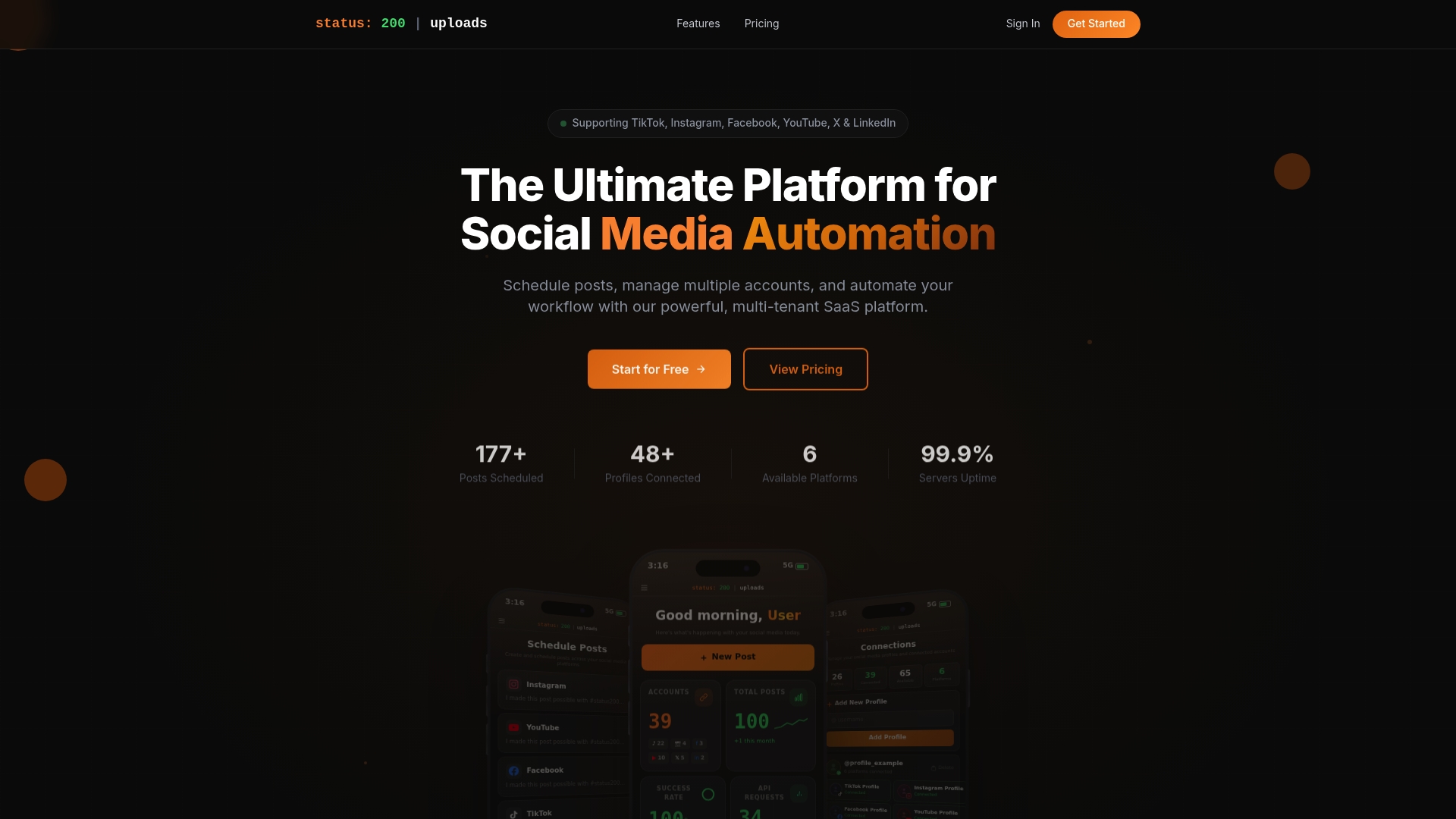
Status 200 Uploads centralizes your asset storage, scheduling, and publishing into one dashboard, so your team spends less time hunting for files and more time creating content that performs. From organizing media libraries to setting platform-specific post times and connecting accounts via secure OAuth, every feature is built to reduce the manual overhead that slows social teams down. Explore the full set of automation features and see how a purpose-built platform can bring the strategies from this guide to life without the manual effort.
Frequently asked questions
What are social media assets?
Social media assets include images, videos, graphics, text posts, and any content used for publishing on platforms like TikTok, Instagram, Facebook, YouTube, X, and LinkedIn. Assets include all media used to elevate brand engagement across channels.
Why do SMBs need a dedicated asset management workflow?
A dedicated workflow prevents mistakes, saves time, and helps maintain a consistent brand presence across multiple platforms. Without it, teams lose hours to file hunting and version confusion that compounds as content volume grows.
What is the best tool to organize social media assets?
Tools that combine cloud storage, automation, and support for multiple platforms are ideal for asset organization. Automated scheduling tools streamline asset distribution across platforms and reduce the manual effort of keeping content synced.
How can you scale asset management as your team grows?
Regular audits, adopting automation, and documenting workflows help keep asset management efficient as your team and asset library expand. Regular audits and adjustment keep asset systems from becoming cluttered and hard to navigate.
What common mistakes should you avoid when organizing assets?
Avoid unclear naming conventions, skipped version control, and unreviewed uploads to prevent confusion and lost files. Mapping out a standardized workflow ensures assets are easy to locate and deploy when you need them most.